

To set up stock management to control when the pre-order button appears on your store, kindly go to Setting up Stock Management section in the Information page.
There are three options for you to choose:
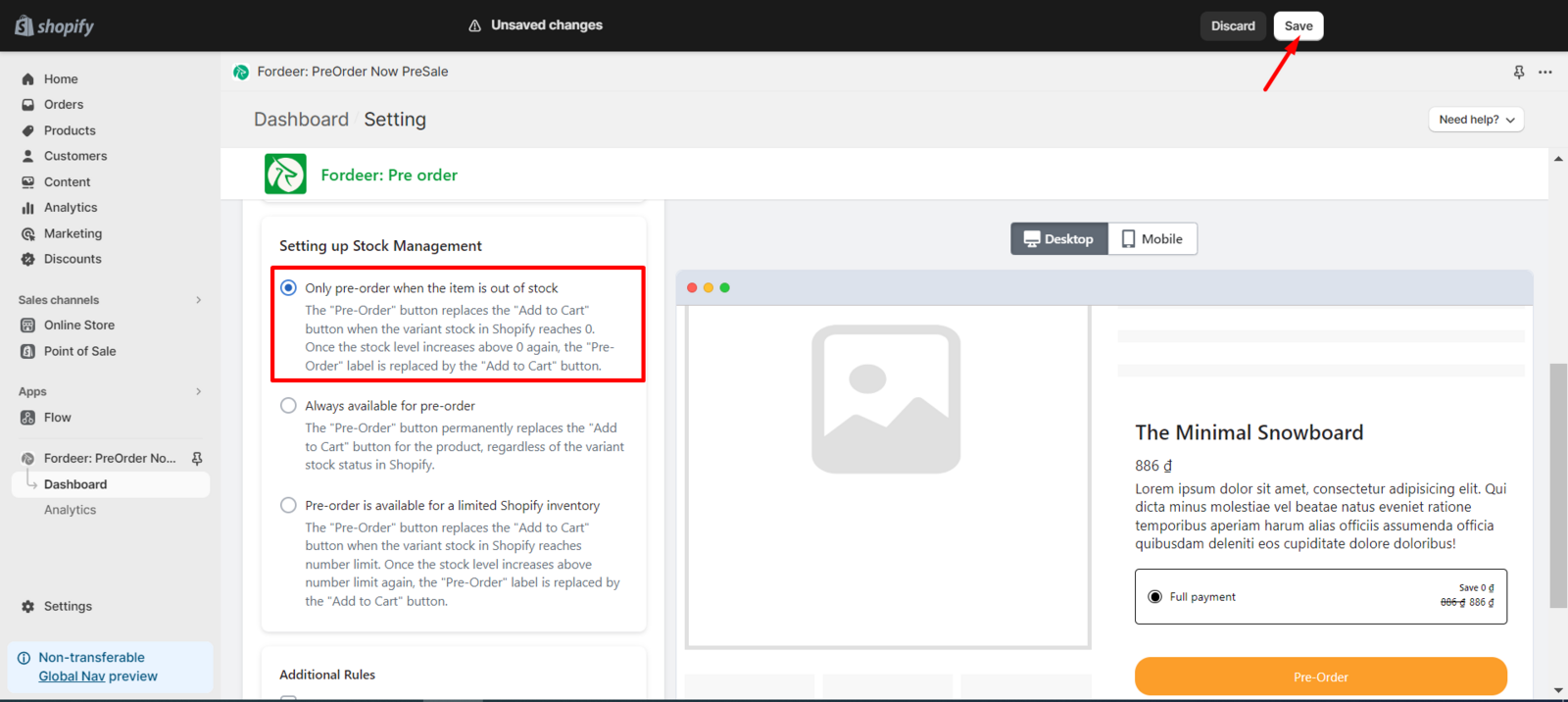
1. Only pre-order when the item is out of stock
The Pre-Order button replaces the Add to Cart button when the variant stock in Shopify reaches 0. Once the stock level increases above 0 again, the Pre-Order label is replaced by the Add to Cart button.
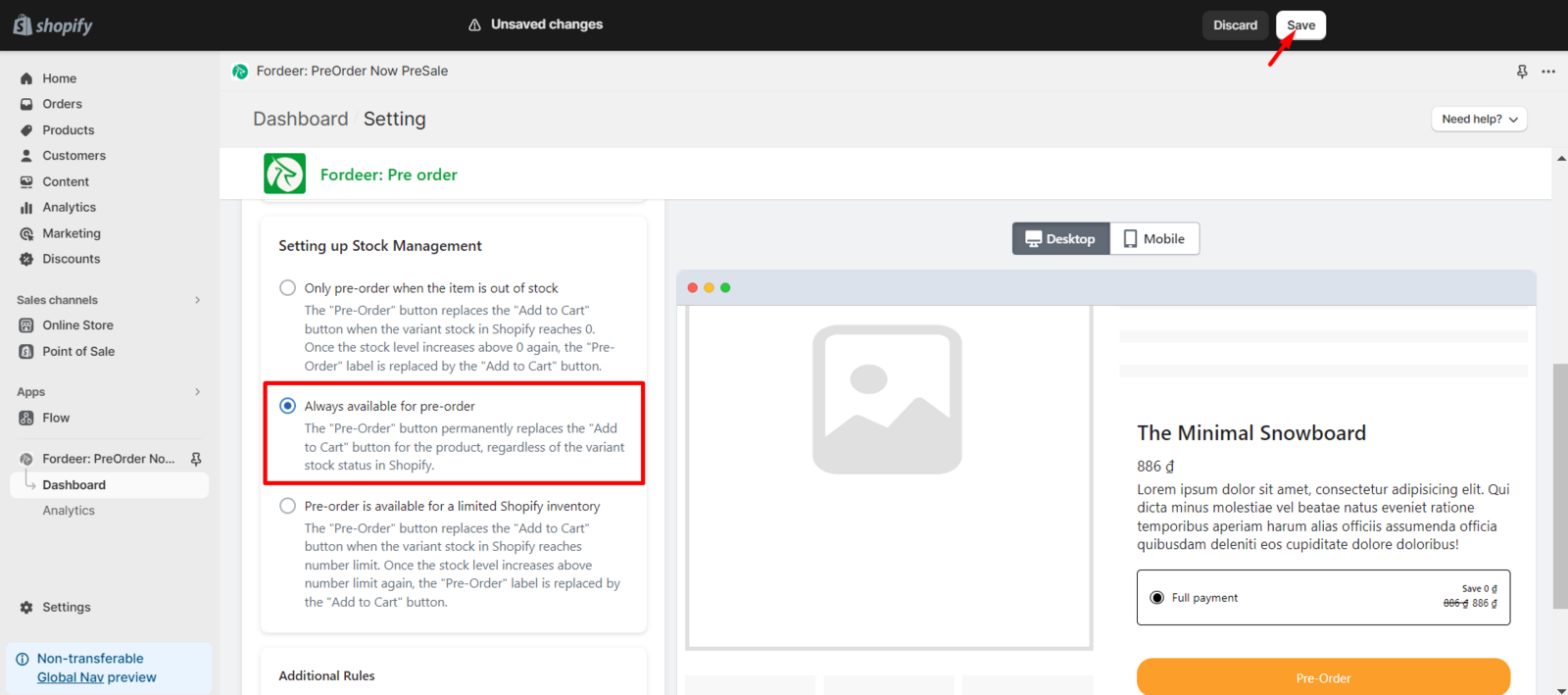
2. Always available for pre-order
The Pre-Order button permanently replaces the Add to Cart button for the product, regardless of the variant stock status in Shopify.
3. Pre-order is available for a limited Shopify inventory
The Pre-Order button replaces the Add to Cart button when the variant stock in Shopify reaches number limit. Once the stock level increases above number limit again, the Pre-Order label is replaced by the Add to Cart button.
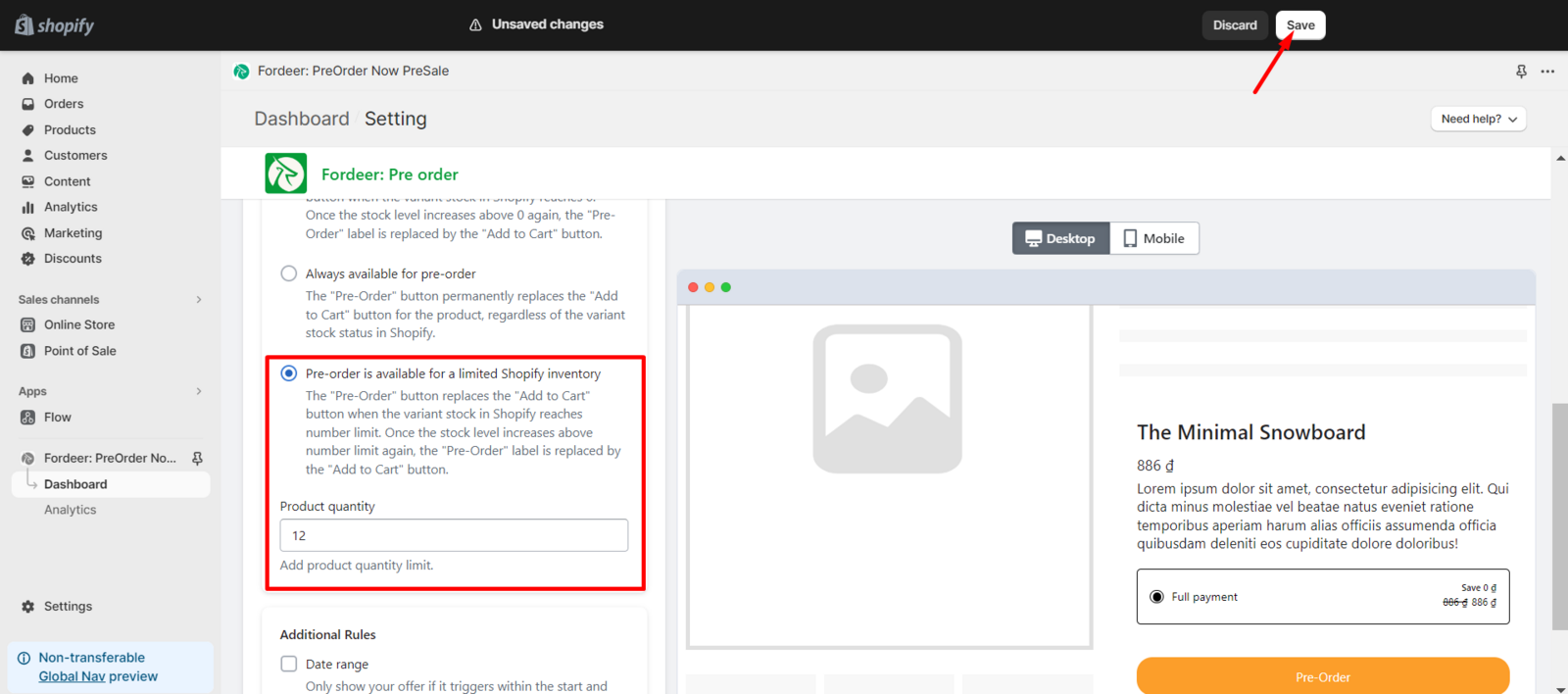
In this field, besides the first step is putting a checkmark on the option: Pre-order is available for a limited Shopify inventory, you need to set up the Product quantity.
We value your feedback — it helps us continuously improve ForDeer and provide you with a better experience.
👉 Chat with us: Share your feedback directly with our team.
👉 Email us: hi@fordeercommerce.io
👉 Explore more apps: Discover more Fordeer apps.
👉 Join our community: Join ForDeer Community to get the latest updates, tips, and special deals.
🕐 Working hours: 8:30 AM – 5:00 PM (UTC+7), Monday–Friday.
We typically reply to live chats within minutes and emails within a few hours.
Need help? Feel free to reach out anytime via live chat or email!