

To ensure that the pre-order buttons align with your specified offer, it's crucial to set a specific date range. Here's a step-by-step guide:
-
Navigate to the Information section on the Dashboard page.
-
Scroll down within the Additional rules option until you locate the Date range.
-
Check the Date range checkbox to activate the option.
-
Choose both the start and end dates for your specified offer within the provided fields.
-
Lastly, remember to click the Save button at the end to preserve all the changes.
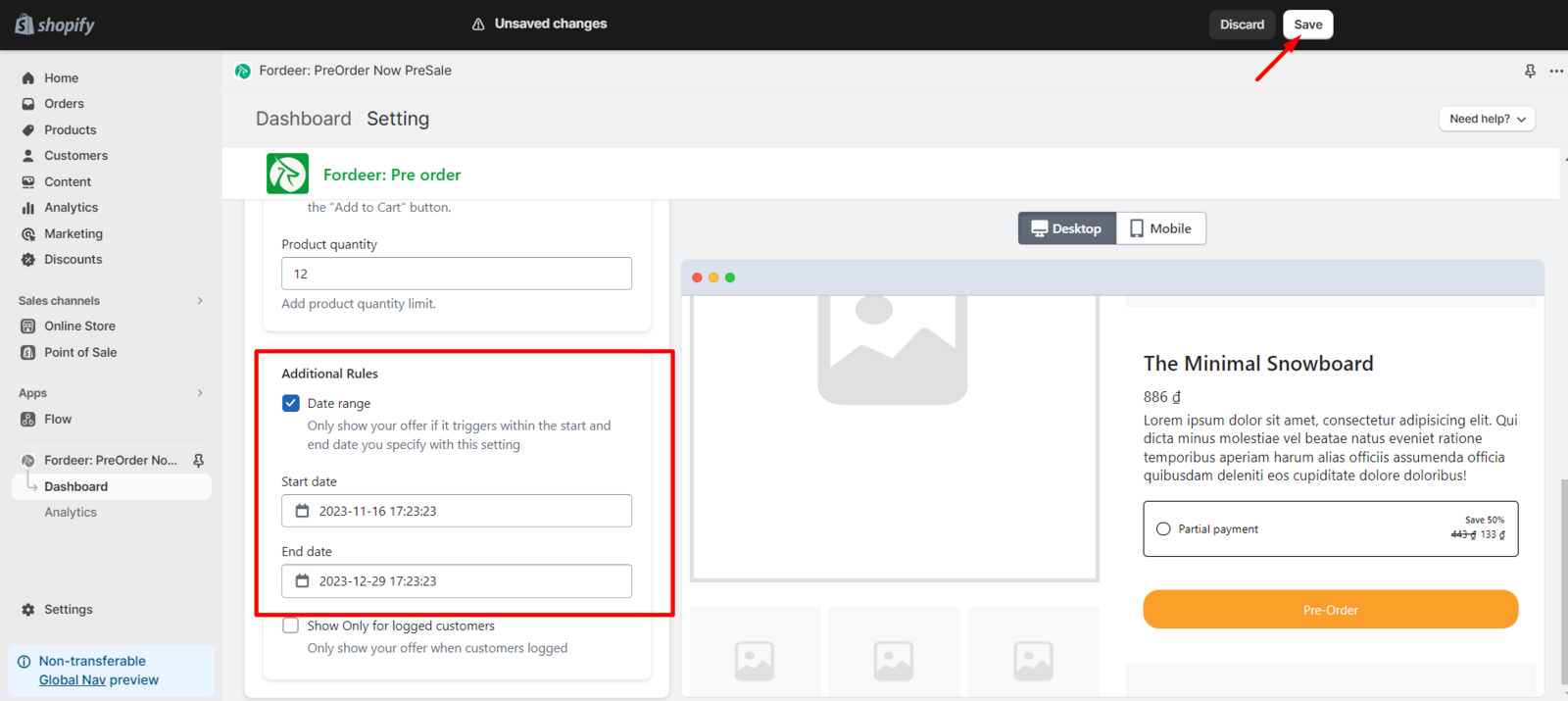
By following these guidelines, you can seamlessly set the date range for your pre-order buttons, ensuring that your offer is effectively triggered only within the specified start and end dates.
We value your feedback — it helps us continuously improve ForDeer and provide you with a better experience.
👉 Chat with us: Share your feedback directly with our team.
👉 Email us: hi@fordeercommerce.io
👉 Explore more apps: Discover more Fordeer apps.
👉 Join our community: Join ForDeer Community to get the latest updates, tips, and special deals.
🕐 Working hours: 8:30 AM – 5:00 PM (UTC+7), Monday–Friday.
We typically reply to live chats within minutes and emails within a few hours.
Need help? Feel free to reach out anytime via live chat or email!