

After configuring your preorder products and activating the theme extension, if your product preorder button does not display on your product pages, check the following:
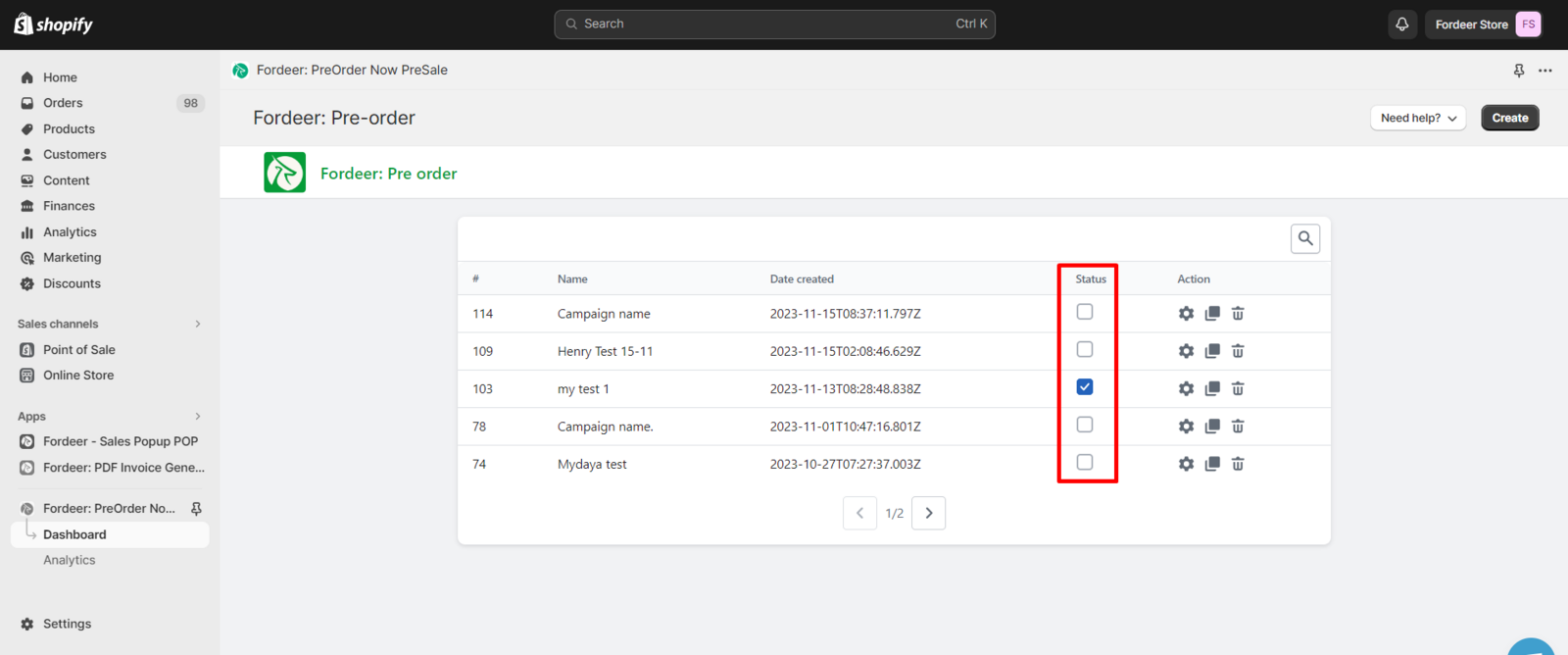
- Make sure the status of the preorder is set to Active.
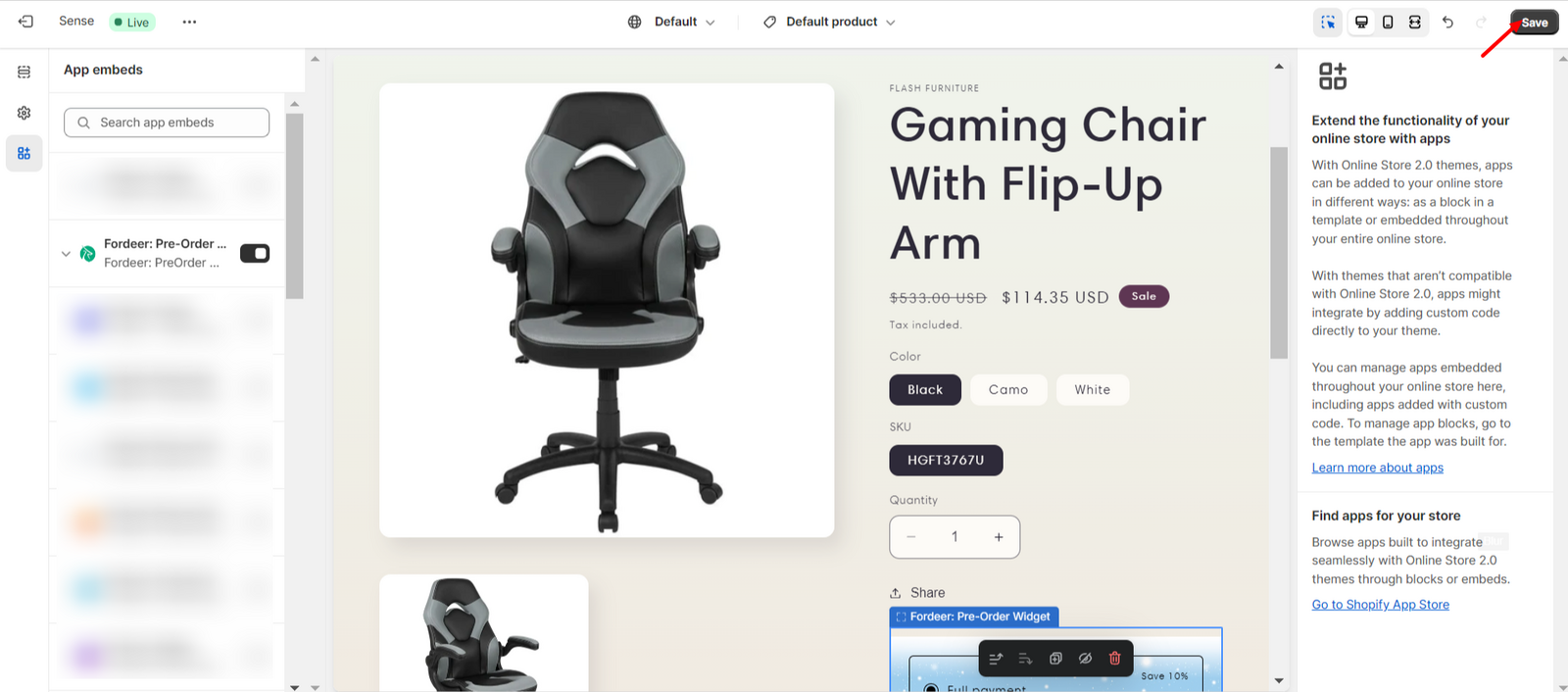
- Check to ensure the theme extension has been enabled.
- Besides, you need to add our app to the Add block section in the Product page.
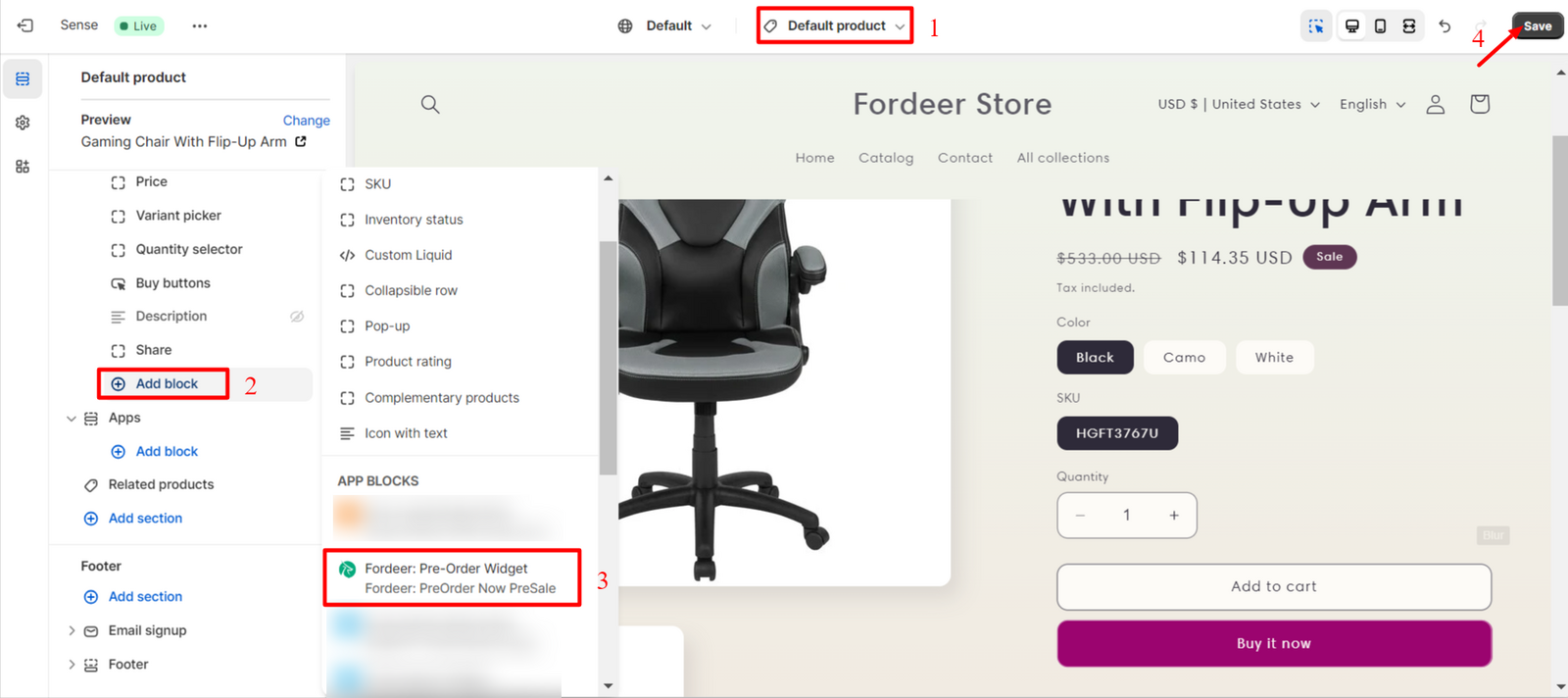
If you find it difficul to add the block, please contact us via livechat or email for quick help!
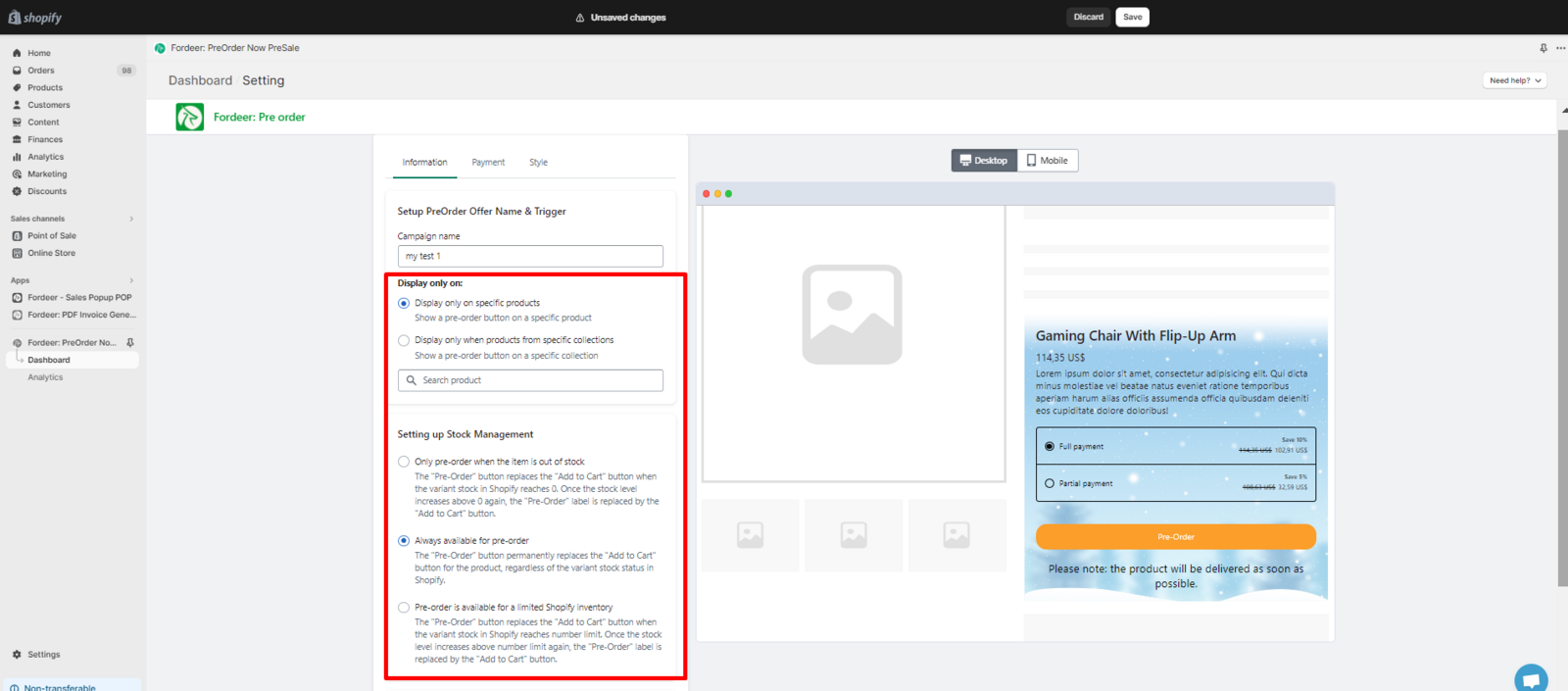
- Confirm the pre order is supposed to show based on stock management and trigger settings.
-
Make sure you are viewing your actual product page. The preorder button will not display on a collection page or in the featured product section on the home page or elsewhere.
-
To ensure all products in your collection display the pre-order button, please create multiple campaigns. Each campaign can handle a maximum of 250 variants. Large collections may exceed this limit, causing inconsistencies in button display.
If your preorder product still doesn't appear with the preorder button after going through the list above, reach out to our team and make sure to fix the issue and get you set up in no time.
We value your feedback — it helps us continuously improve ForDeer and provide you with a better experience.
👉 Chat with us: Share your feedback directly with our team.
👉 Email us: hi@fordeercommerce.io
👉 Explore more apps: Discover more Fordeer apps.
👉 Join our community: Join ForDeer Community to get the latest updates, tips, and special deals.
🕐 Working hours: 8:30 AM – 5:00 PM (UTC+7), Monday–Friday.
We typically reply to live chats within minutes and emails within a few hours.
Need help? Feel free to reach out anytime via live chat or email!